 FlowHop
What you'll learn
- Pin FlowHop so it's one click away
- Record a task from start to finish
- Stop and open your new guide
Steps
Pin FlowHop to your toolbar
Click the puzzle-piece icon next to the address bar, then the pin beside FlowHop. The first time, FlowHop explains what it records and what it never does – press I agree – set up FlowHop to start.
Open the page where the task starts
Go to the web app you want to document, on the screen where the task begins – for example the dashboard of your HR or finance system.
Press “Record a new guide”
Click the FlowHop icon and press Record a new guide. Or use the shortcut Alt+Shift+R. A small Recording label appears and stays on screen while you record.
Do the task as normal
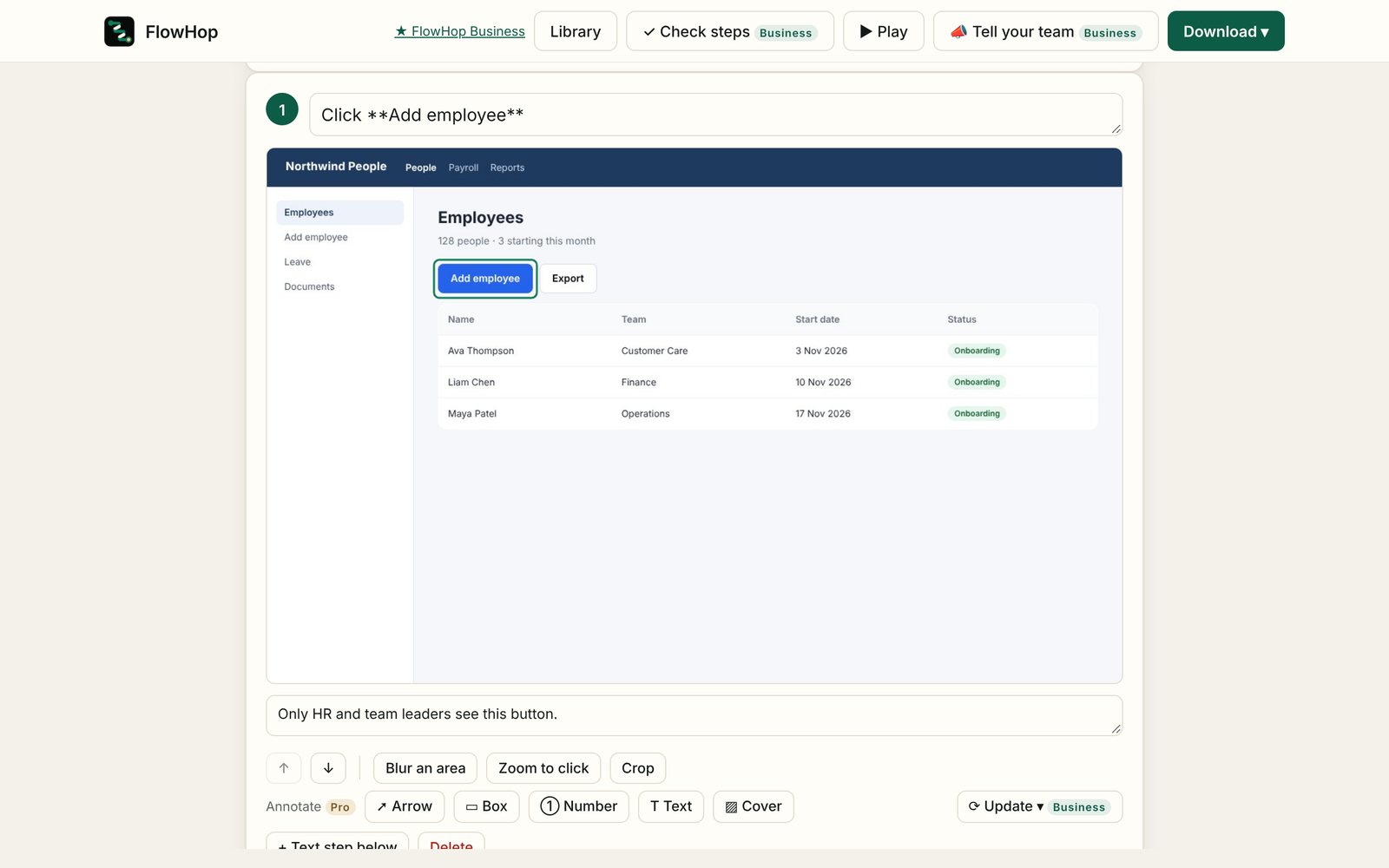
Each click, choice and typed field becomes a step with plain wording, such as “Click Save” or “Select Australia for Country”. Need to do something private for a moment? Press Pause, then Resume.
Press Stop
Press Stop on the Recording label (or Stop & edit in the FlowHop menu). Your guide opens in the editor, ready to tidy up.
Go a little slower than usual and do one thing at a time, the way you'd show a new colleague. If you take a wrong turn, keep going – you can delete extra steps afterwards.
- Password, card and ID number boxes are blurred in screenshots automatically. What you type isn't added to the step wording unless you switch on “Include what I type in step descriptions” in Settings.
- If your task moves to another website, FlowHop pauses and offers Keep recording on …. To skip that question, switch on Follow me to any website in Settings.
- FlowHop can't record browser settings pages or the Chrome Web Store. Screenshots show whatever is on screen, so check them before you share.