 FlowHop
What you'll learn
- Retake one step without re-recording the guide
- Check the change before → after
- Issue a new version
Steps
Choose the step
In the editor, on the step that changed, press ⟳ Update ▾ → Update this step.
Go to the screen
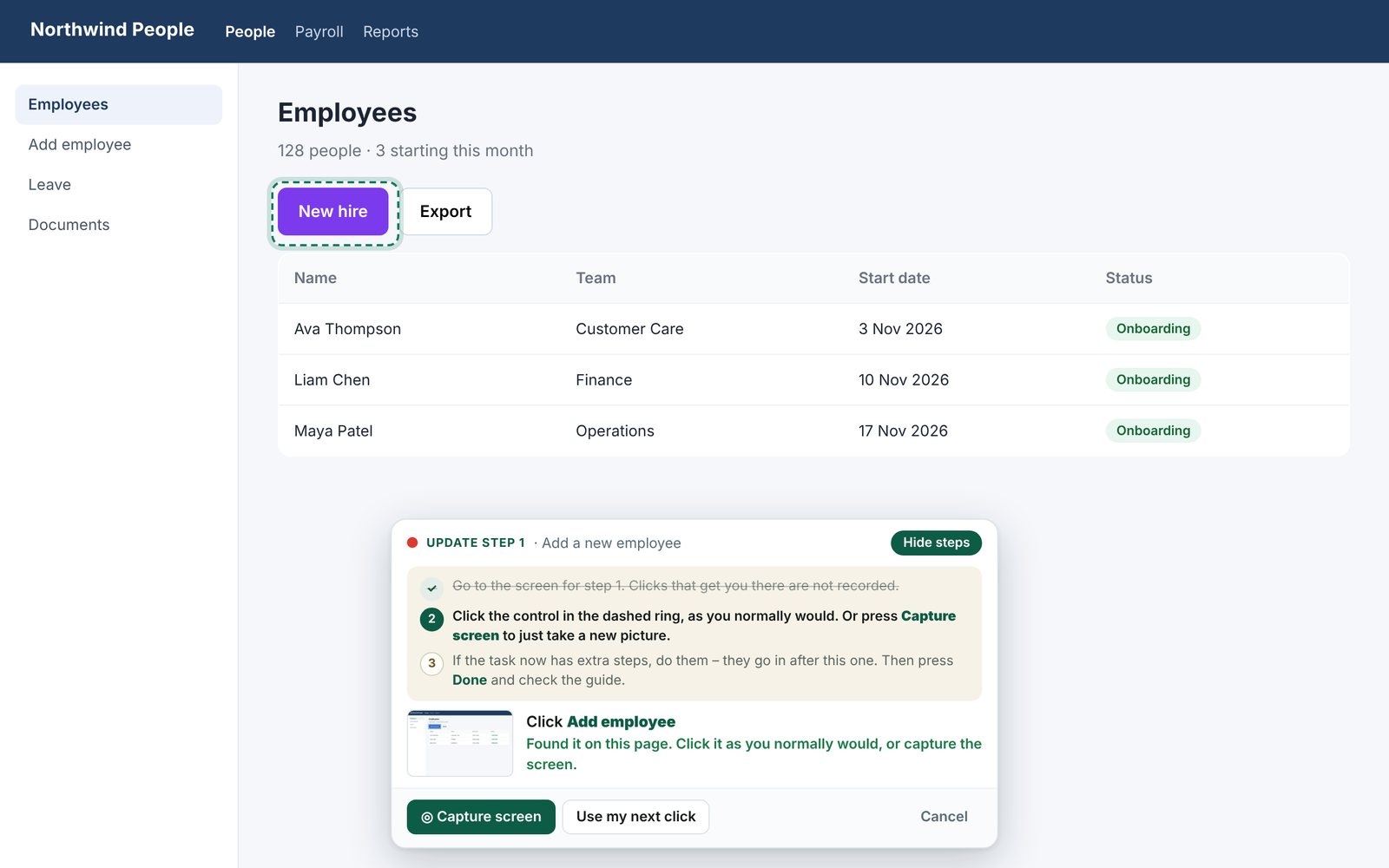
FlowHop opens the page and shows the update bar with the old picture as a thumbnail. If you need to click to reach the screen, go ahead – those clicks aren't recorded. Press Show me how for numbered steps.
Click the ringed control
Click the control in the dashed ring as you normally would, or press Capture screen to just take a new picture. If it has moved or been renamed, press Use my next click and click the right one.
Add any new steps, then Done
If the task now has extra steps, do them – they go in after this one. Then press Done.
Check before → after
Back in the editor, use Before and After to compare. Undo update restores the old step and Use the old wording keeps your original text.
Issue the new version
Press Issue new version…, say what changed, and issue it. Then Tell your team… lets people know.
Whole section changed? Re-do from here records the step and the ones after it again – matching steps keep their tips. Add steps after this one inserts new steps without touching the rest.
If a control seems to have moved or been renamed, FlowHop flags it so you can check it. Renamed buttons update the bold names in your wording; text you rewrote yourself is left alone.
Try this free 3 times. Every install gets 3 free tries of paid features, Business included – each update, version, reel or other paid action uses one. If keeping guides current is part of your job, Business is A$199 a year or A$24 a month.
See plans