 FlowHop
What you'll learn
- Find the screens that changed
- Update them all in one session
- Review, then issue every guide together
Steps
Start from the website
Open the system your guides are for, click the FlowHop icon and press Update all guides.
Check what changed
Press ✓ Check for changes. Open Guides to update to untick any guides that belong to another system – FlowHop remembers your choice for this website.
Choose and start
Pick Changed screens only, or Every screen after a new look or branding change. Press Start updating.
Capture each screen once
The bar walks you through, for example “Update all · screen 2 of 5 · Used in 4 guides”. Click the ringed control or press Capture screen. Skip leaves a screen as it is. Press Finish at the end.
Review the updates
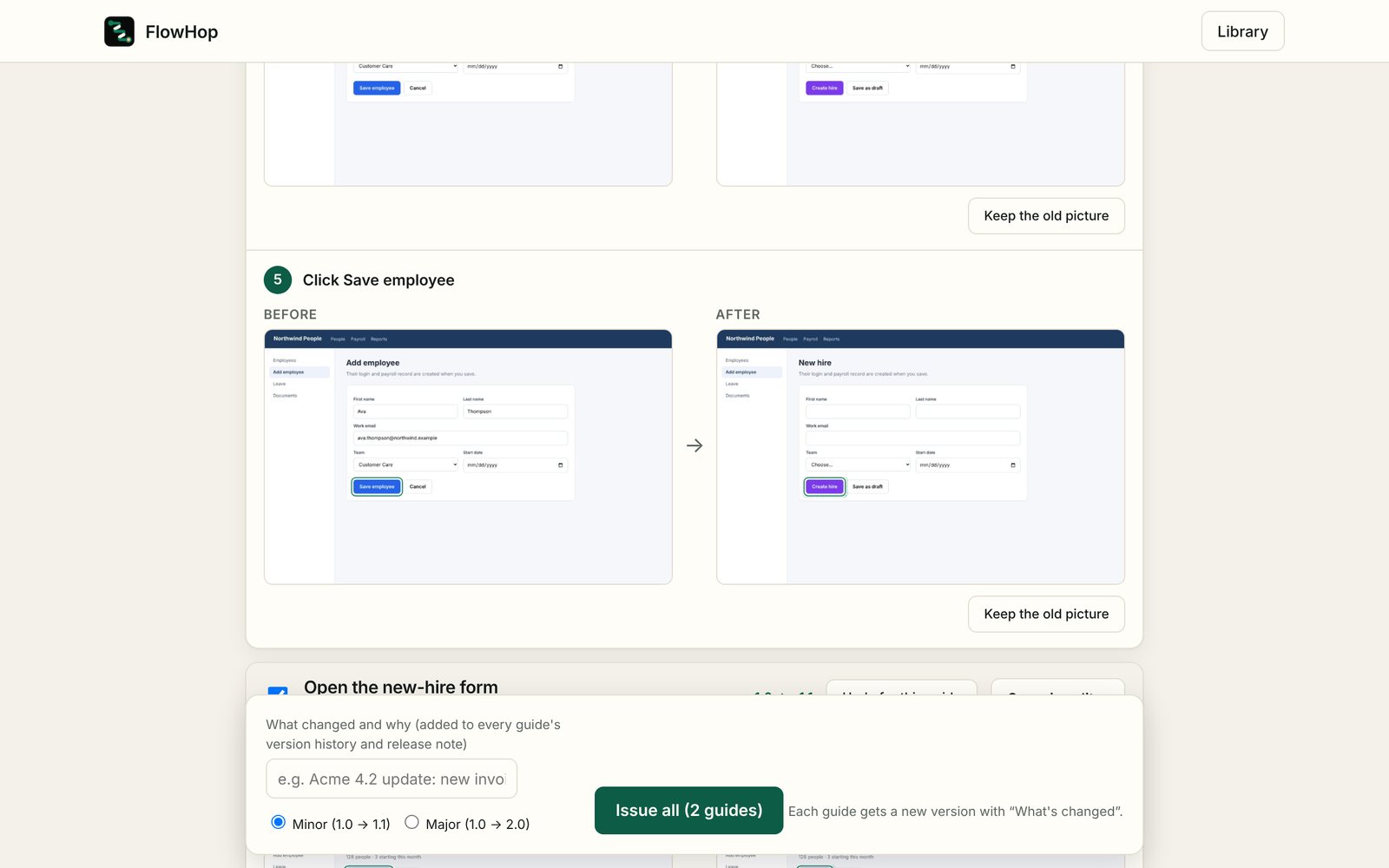
Every changed step is shown before → after. Use Keep the old picture for any step, untick Include in Issue all or press Undo for this guide. Write what changed and why, and choose minor or major.
Issue all, then tell your team
Press Issue all. Each guide gets a new version with “What's changed”. Tell your team → takes you straight to the update email.
Before a release goes live, run Update all on the test system. With clean screenshots on, your guides will look like the live system on day one.
The change check helps you find screens that moved, but it can't guarantee to catch every change on a website. After a big release, skim your most-used guides too.
Try this free 3 times. Every install gets 3 free tries of paid features, Business included – each update, version, reel or other paid action uses one. If keeping guides current is part of your job, Business is A$199 a year or A$24 a month.
See plans