 FlowHop
What you'll learn
- Pick who should know
- Choose what they get, including the reel
- Send from Outlook, Gmail or Teams
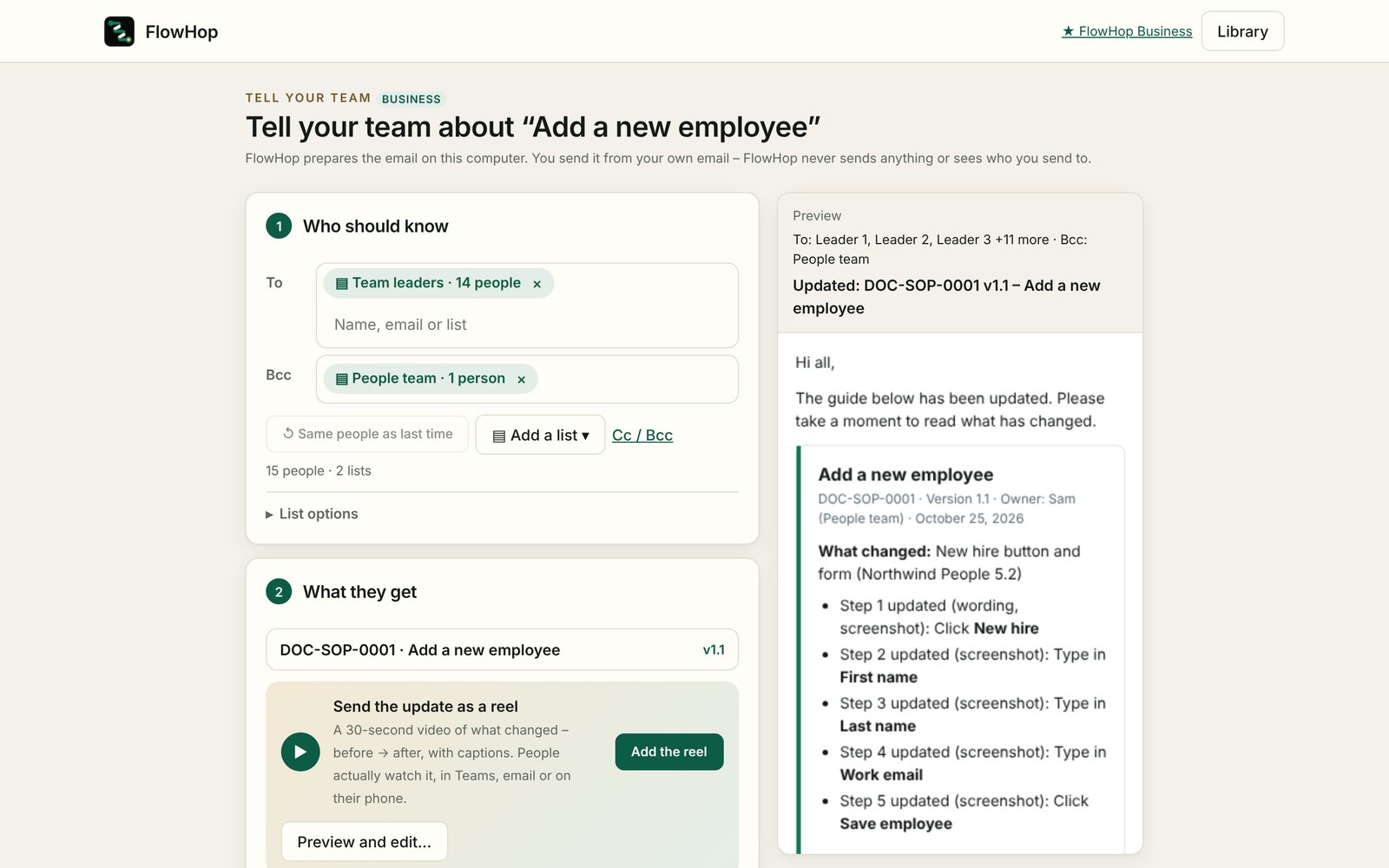
Steps
Open Tell your team
Press 📣 Tell your team in the editor, or Tell your team → straight after Issue all.
Who should know
Type names or emails, add a saved list with ▤ Add a list ▾, or press ↺ Same people as last time. Set up lists in Settings → Distribution lists – paste a To line or use Import CSV or Excel….
What they get
Press Add the reel on the “Send the update as a reel” card, and tick the attachments: PDF, Word or web page. You can also Add a “Confirm you've read this” button that links to your own Microsoft or Google Form.
Send with
Choose Outlook for a ready-to-send draft, Gmail, or Copy email to paste into Teams or Slack. More options are under More ways and options.
Send it, then mark it sent
Check the message in your email app and press send. Back in FlowHop, press ✓ I've sent it so the guide records it and “Same people as last time” is right next time.
Lists go in Bcc by default, so people don't see each other's addresses. Most work email accepts up to about 20 MB – FlowHop warns you if the attachments are bigger.
- FlowHop never sends email itself and can't see your mailbox. It doesn't track who opens or reads your updates.
- The “Confirm you've read this” button opens your own form, and your form records the responses. Switch on “collect email addresses” (or ask for a name) in the form so you know who confirmed.
Try this free 3 times. Every install gets 3 free tries of paid features, Business included – each update, version, reel or other paid action uses one. If keeping guides current is part of your job, Business is A$199 a year or A$24 a month.
See plans